 SIOBuilder
YOUR AI PAGES, IN SYSTEME.IO
Guides: ChatGPT, Claude and Systeme.io
You have a page created with AI. Learn how to prepare it for Systeme.io, choose between an HTML embed and editable elements, and check the result.
How do you use an AI page in Systeme.io?
To use a page created by ChatGPT or Claude in Systeme.io, you can embed its code in a Raw HTML element or convert its structure into editable blocks with SIOBuilder. The right choice depends on how you want to edit the page after importing it.
Choose your starting point
How to import ChatGPT HTML into Systeme.io
Prepare ChatGPT-generated HTML, choose raw code or editable blocks, and check your imported page in Systeme.io.
Read the guideImport a Claude page into Systeme.io: HTML or native blocks?
Retrieve your Claude page HTML and choose a Systeme.io integration method that matches how you will maintain it.
Read the guideRaw HTML or editable Systeme.io blocks: which should you choose?
Understand the difference between displaying HTML in Systeme.io and converting its components into editable native elements.
Read the guideBuild a Systeme.io funnel with AI: from pages to a working journey
Define the offer, generate pages with AI, import sections and verify forms, links and steps in your Systeme.io funnel.
Read the guideSysteme.io HTML compatibility: prepare and check your AI page
Check images, styles, scripts and forms before inserting or converting AI-generated HTML for Systeme.io.
Read the guideDisplay HTML
The Systeme.io Raw HTML element is suitable when you want to embed code and edit the code itself. Its free converter prepares HTML for this type of embed.
View the official free tool ↗Edit in the visual editor
SIOBuilder targets native sections and elements: adjust supported text, buttons and layouts using Systeme.io controls. The result depends on the HTML and needs to be checked.
Understand both methods ↗Watch the conversion and edits in Systeme.io
This walkthrough shows importing HTML into SIOBuilder, inserting sections with the Chrome extension, then changing an image through Systeme.io’s native controls. Use these steps to check which elements you can edit on your own page.
Watch the walkthrough · 7 min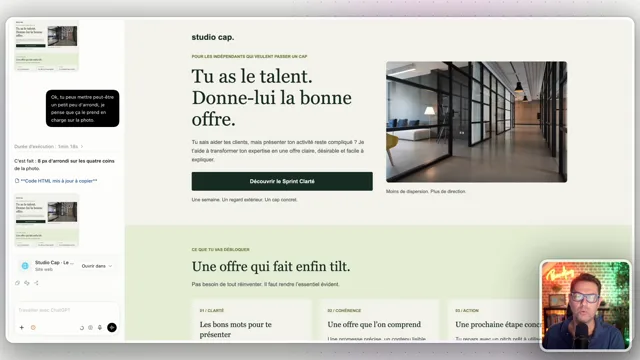
SIOBuilder
Test a real section from your page.
5 free sections, no credit card required. You need a Systeme.io account, Chrome and the SIOBuilder extension to insert the result.